
What's in the app
| Group | What it covers | Cards |
|---|---|---|
| Booster sets | hBP01 Blooming Radiance to hBP09 Volume Vortex, plus hEB01 Summer Hologram | 2,255 |
| Starter Decks | hSD01 to hSD13, Live Start Decks hSD14 to hSD19, and hSD20 to hSD21 | 407 |
| Promos | PR packs, tournament prizes, birthday cards, anniversary and collection sets, magazine and album bonuses, collabs and more | 537 |
| Total | 3,199 |
Every card has its artwork, Japanese and English names, rarity, foil status and an estimated value. Announced but not-yet-released products are shown as "Coming Soon".
The app has three tabs along the bottom: Catalogue (every card), Portfolio (the cards you own) and Inventory (your spare copies).
Catalogue: browse every card
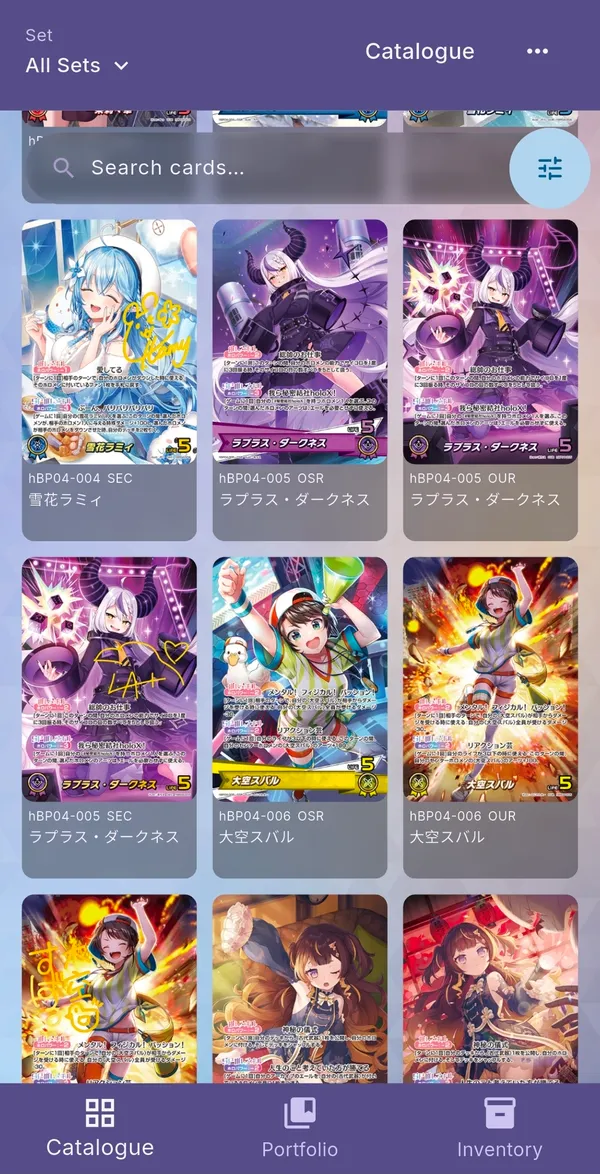
The Catalogue tab shows every card in a grid, two to a row.
- Pick a set: tap Set ▾ in the top-left and choose from the Booster Sets, Starter Decks or Promos tabs. All Catalogue at the top shows everything. All Boosters, All Decks and All Promos show every set of that kind, with a heading for each set.
- Search: type in the search bar to find cards by name, card number, member or set. See Search, sort and filter.
- Filter: tap the sliders button next to the search bar.
- Open a card: tap any card to see its Card Profile.
- See more at once: ••• → 3-Card View fits three smaller cards per row.
Card Profile: claim cards and count duplicates
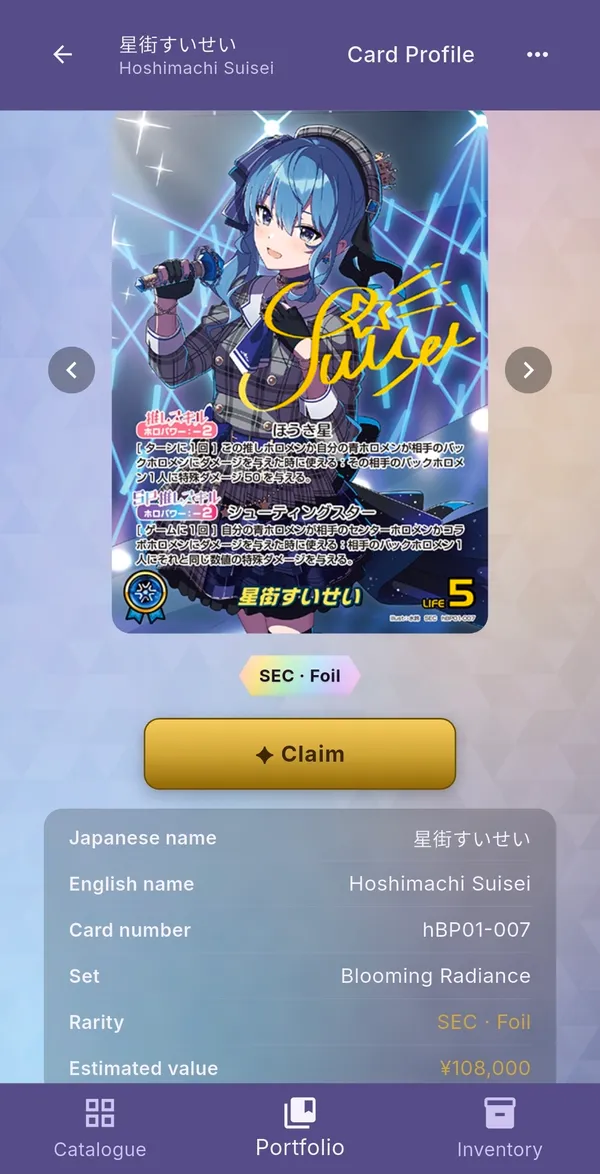
Tap any card to open its profile: large artwork, rarity, set, card number, both names and its estimated value, with a trend arrow showing how the price moved since last week.
Add a card to your collection
- Find the card in the Catalogue, or in a set in Portfolio, and tap it.
- Press the gold ✦ Claim button. It changes to ✓ Claimed, and the card now counts towards your Portfolio.
- Got extra copies? Use the + / − buttons in the Duplicates panel to record how many spares you have. These show up in your Inventory.
To unclaim, double-tap ✓ Claimed and confirm. Your duplicate count is kept.
Use the ‹ › arrows beside the artwork (or swipe) to step through the other cards in the same list without going back.
Portfolio: your collection, set by set
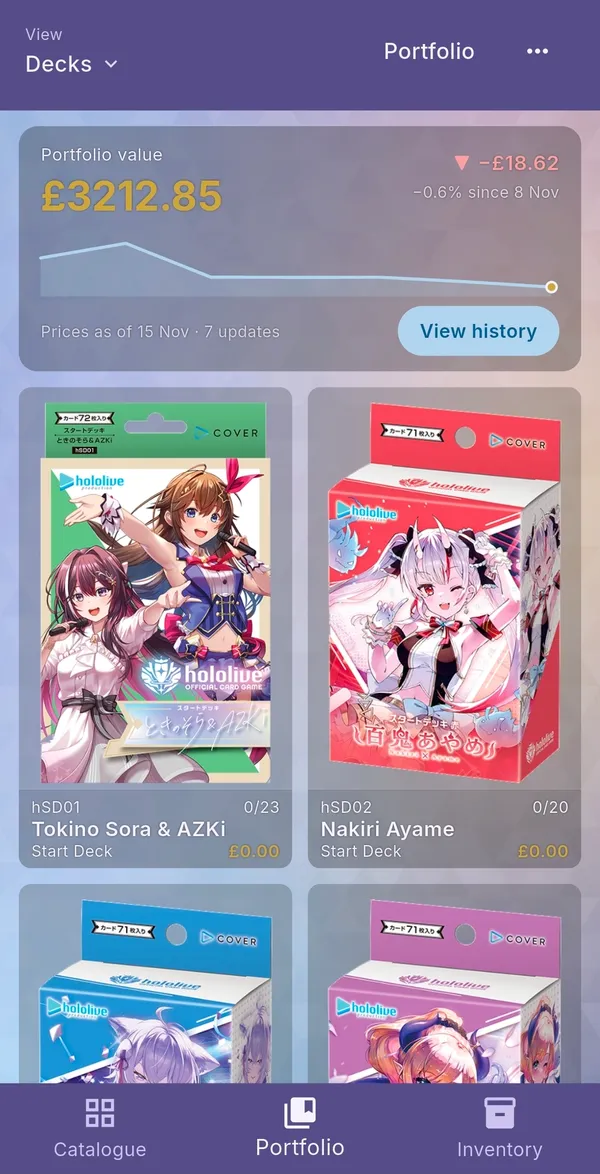
The Portfolio tab opens with your collection value: the total for one of each card you own, how much it changed since last week's prices, and a mini chart. Tap View history for the full Value History.
Below it, each set shows:
- a progress bar with the percentage of the set you've claimed
- cards owned / total in the set (every rarity counts, for a truthful completion figure)
- the estimated value of the cards you own from that set
Use the View ▾ menu in the top-left to switch between:
- Sets: the booster sets.
- Decks: the starter decks, shown with their box art.
- Promos: grouped into ten categories, such as Basic PR Packs, tournament prizes, birthdays and collabs. Inside a category, the cards are listed under each event.
Tap any of them to open it.
Set view: owned and unowned at a glance
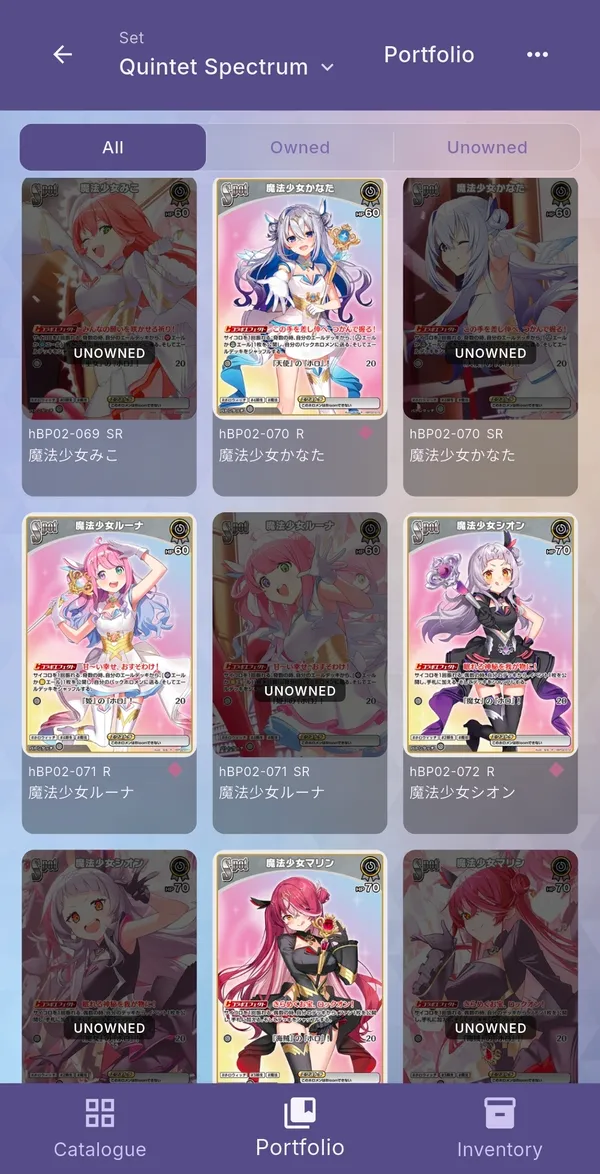
Inside a set, use All / Owned / Unowned at the top to switch views.
- Cards you don't own yet are dimmed with an UNOWNED label.
- A small pink dot marks cards you have duplicates of.
- Each card shows its price and trend arrow.
- Switch to another set with the Set ▾ title at the top, without going back.
- The search bar and sliders button work here too, including sorting by value.
Value History: track what your collection is worth
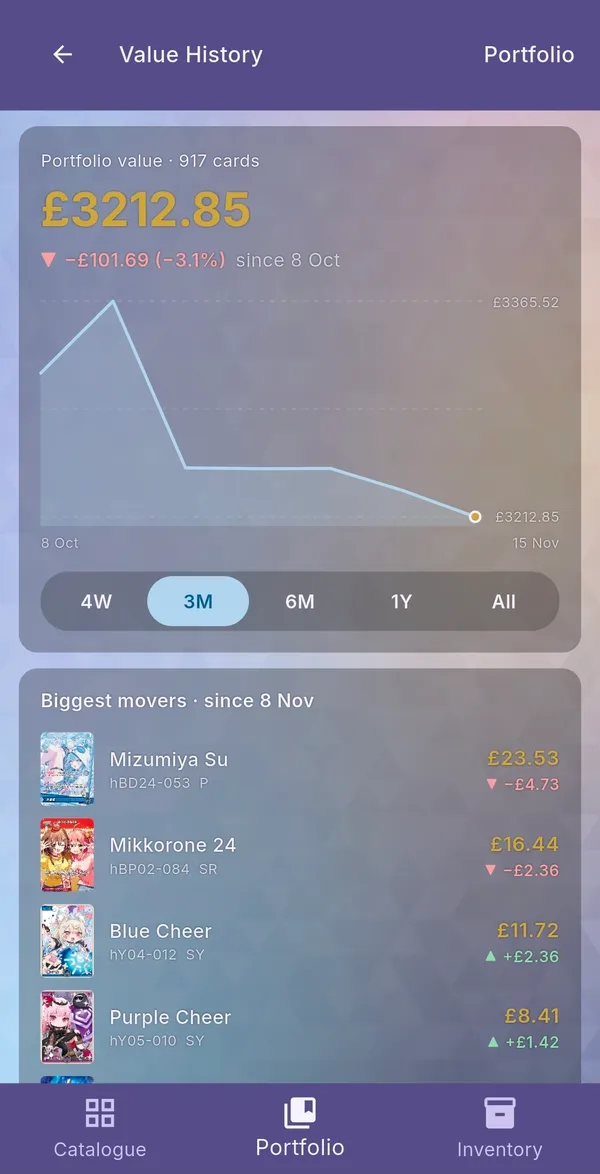
Prices update every Sunday, and Oshi Collect remembers each update, so you can see how your collection's value moves over time. Open it with View history on the Portfolio or Inventory summary panel.
- Value chart: your total value at each weekly update. Switch the range with 4W / 3M / 6M / 1Y / All. The line under the total shows the change over that range.
- Biggest movers: the cards in your collection that gained or lost the most since the last update.
- By set: what each set contributes to your total, largest first, with whether it went up or down.
Trend arrows
A small triangle sits next to prices all through the app: on card tiles, set cards, Card Profiles and the summary panels.
- ▲ green, pointing up: the price rose since last week.
- ▼ red, pointing down: the price fell.
- ▶ pointing right: no change.
Inventory: your duplicates
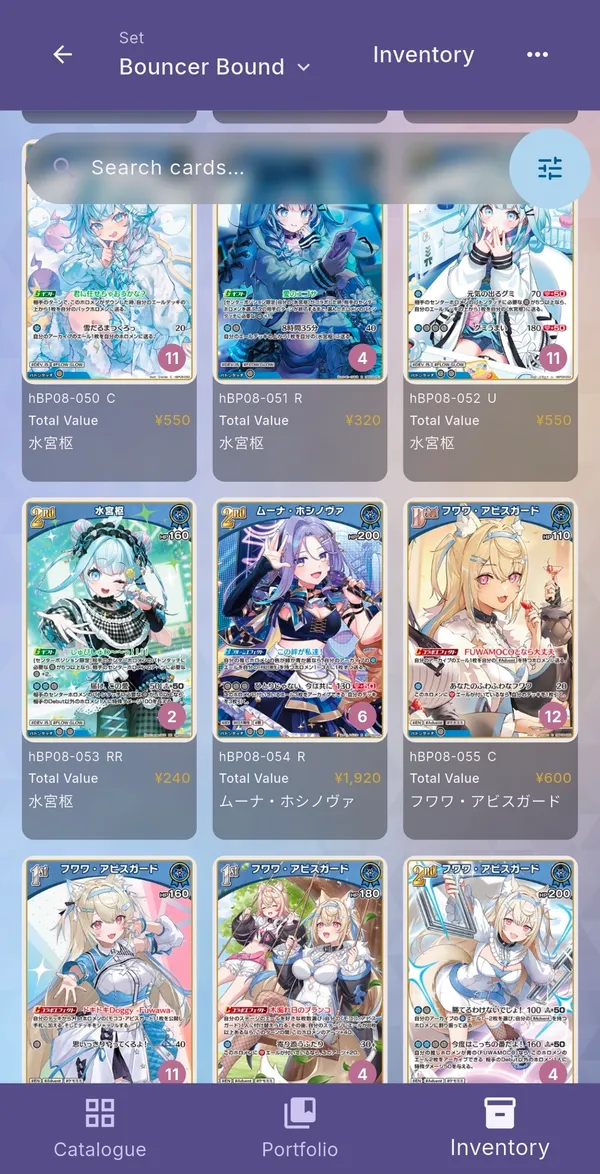
The Inventory tab is for your spare copies, which is handy for trading or selling.
- The summary panel at the top shows the value of every spare copy you hold, with its own View history.
- Each set shows how many duplicates you have, their total value, and your most valuable spare.
- Inside a set, only cards with duplicates are shown. The number badge on the artwork is how many spares you have, and Total Value is that card's price × your spares.
- Tap the sliders button to sort by Card Number, Most Duplicates, Highest Total Value or Highest Single Value.
Search, sort and filter
Search
The search bar finds cards by:
- Name, in English or Japanese
- Card number, for example hBP01-007
- Member: searching Suisei also finds support cards she appears on
- Set: its name (grand prix, twin wafers) or official code (hWF01, hCS02)
Sort and filter
The sliders button next to the search bar opens the options for that tab.
| Tab | Sort by | Filter by |
|---|---|---|
| Catalogue | Card number, or value (high to low, low to high) | Owned / Unowned, Foil, Rarity, Colour, Estimated Value |
| Portfolio | Value | Rarity, Foil, Colour |
| Inventory | Card number, Most Duplicates, Highest Total Value, Highest Single Value | Rarity, Foil, Colour |
Colour is called Archetype in the app. Cards with two colours match either one.
Currency and prices
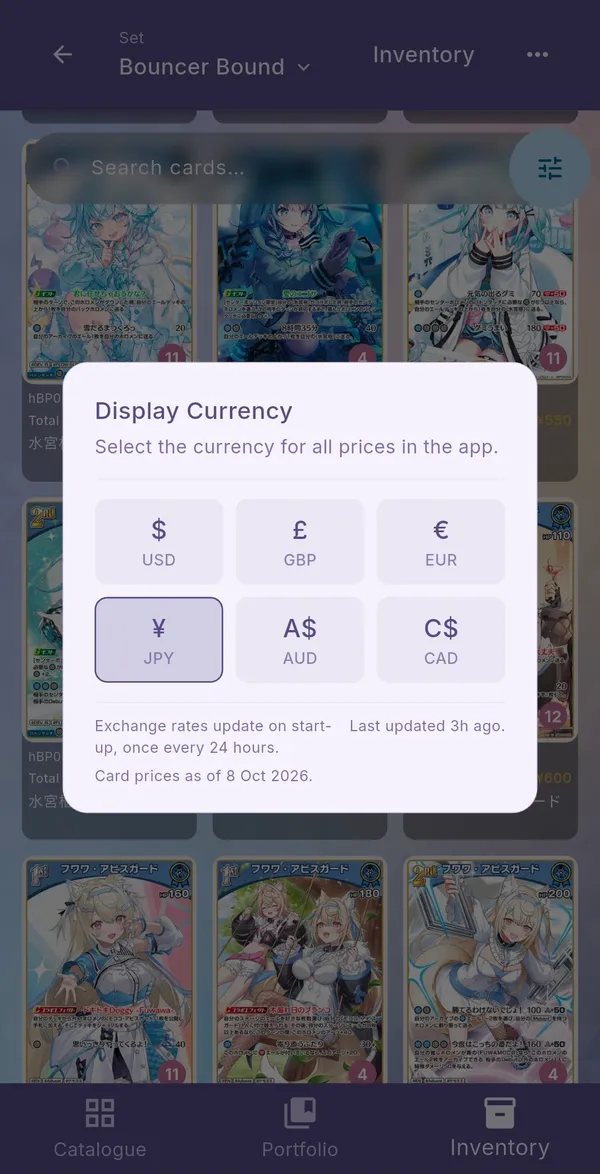
Change your currency
- Tap ••• in the top-right of any screen.
- Tap Currency.
- Choose USD, GBP, EUR, JPY, AUD or CAD. Every price in the app switches straight away.
Market values
- Prices are estimated market values in Japanese yen, taken from the Japanese card shops Yuyutei and Fullahead. Other currencies are converted using exchange rates that refresh once a day.
- Prices update automatically every Sunday. The app picks up new prices when you open it or come back to it, so no app update is needed. The Currency window shows the date of the prices you're seeing.
- A card showing "No price yet" has no reliable price listed yet. It is never shown as ¥0.
- It works offline too: the app keeps the last prices it downloaded.
Prices are estimates for reference. They aren't offers to buy or sell.
Options: the ••• menu
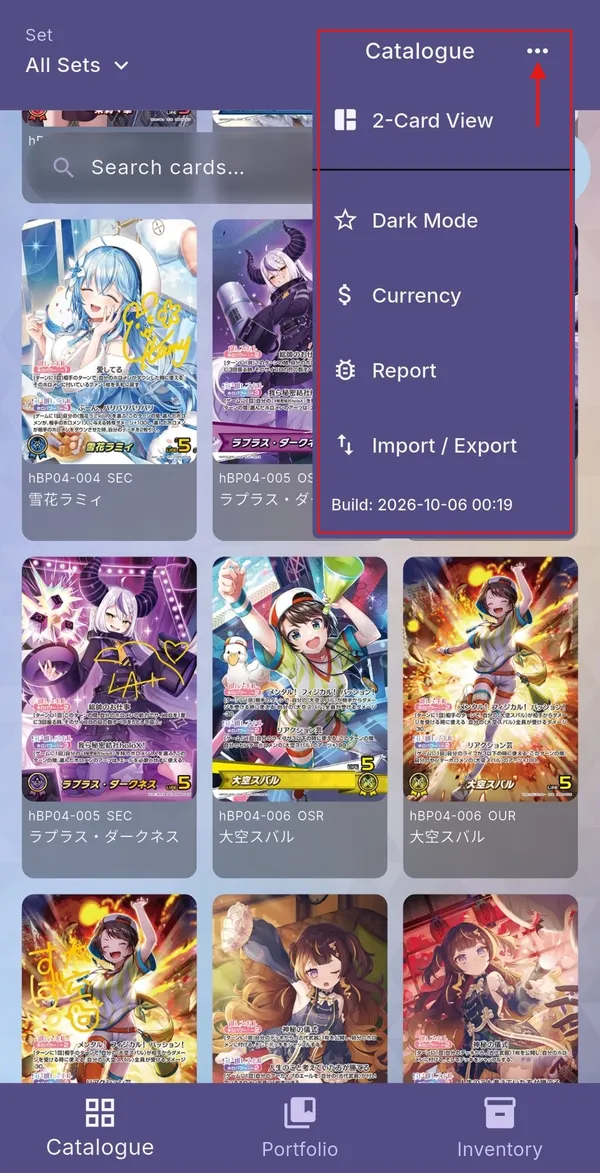
Tap ••• in the top-right corner of any screen.
- 3-Card / 2-Card View: card grids show two cards per row to begin with. Switch to three smaller cards per row, and back again.
- Dark Mode / Light Mode: switch themes. Your choice is remembered.
- JP Names / EN Names: card names show in English by default. Switch to the Japanese names printed on the cards.
- Currency: see Currency and prices.
- Report: spotted a wrong price, name or missing card? Send a short report straight to the developer. Reports sent from a Card Profile include that card's details automatically. What a report contains.
- Import / Export: save or restore your whole collection. See below.
- The bottom of the menu shows which version you have installed.
Back up your collection
Your collection lives only on your phone, so it's worth keeping a copy.
- Tap ••• → Import / Export.
- Tap Export. This saves your claims and duplicates as a .csv file. Keep it somewhere safe, such as your cloud drive or an email to yourself.
- To restore it, on the same phone or a new one, tap Import and pick that file.
More on moving phones and updating: Install guide.